No Internet Connection
If your internet is completely down, work through these steps in order before calling us. Most outages are resolved by step 3.
Try connecting another phone, tablet, or computer to your Wi-Fi. If only one device has no internet, the problem is with that device — not your service. Restart that device first.
Unplug the power cable from the back of your cable modem. Wait a full 30 seconds — not just a few — then plug it back in. Wait 2 minutes for it to fully reconnect before testing again.
If you have a separate Wi-Fi router or eero, unplug it after the modem is back online. Wait 15 seconds, plug it back in, and wait another minute before testing.
After rebooting, check that your modem shows a solid green or white "Online" light. If it's blinking, flashing amber, or showing no light at all, see the Modem Lights section below.
If your modem won't come online after rebooting, there may be a network outage in your area. Call or text us at 509-906-1250 and we can check the network status for your address.
Slow Internet Speeds
Speeds feel sluggish? Work through these before assuming it's a network problem — most slow speed issues are on the device or Wi-Fi side.
Plug a laptop directly into your modem or router with an Ethernet cable and run a test at fast.com. If wired speeds are normal, the issue is Wi-Fi — not your service.
Unplug both, wait 30 seconds, plug the modem back in first, wait 2 minutes, then plug the router back in. This clears memory buildup that can slow things down over time.
Streaming 4K on multiple TVs, large file downloads, or backups running in the background all consume bandwidth simultaneously. Check what's running on your network.
Most routers broadcast both 2.4 GHz and 5 GHz networks. The 5 GHz band is much faster but shorter range. If you're far from the router you may be on 2.4 GHz — try moving closer or connecting to the 5 GHz network specifically.
Microwave ovens, baby monitors, and neighboring Wi-Fi networks can all slow down your connection. Try changing your router's Wi-Fi channel in its settings — channels 1, 6, or 11 on 2.4 GHz are typically the least congested.
Wi-Fi Coverage Issues
Weak Wi-Fi in certain rooms or outside on a deck is very common — especially in units with metal construction, thick walls, or large floor plans.
Wi-Fi radiates outward in all directions. If your modem is in a back corner or closet, move it to a more central spot if possible — this alone can dramatically improve coverage.
Metal surfaces, appliances, and floors all absorb Wi-Fi signal. Placing your router on a shelf or desk at mid-height improves range significantly.
For larger units, metal-sided RVs, or multi-room coverage needs, a single modem often isn't enough. An eero mesh node or a second access point wired back to your modem will give you solid coverage throughout. We can help with this — call us.
In areas with many nearby networks (like a condo building or RV park), channels can get crowded. Use a Wi-Fi analyzer app on your phone to find the least-congested channel and set your router to it manually.
How to Read Your Modem Lights
Your modem's lights tell you exactly what's happening with your connection. Here's what each light pattern means on ARRIS/Motorola cable modems — the most common modems on our network.
| Light | Color / State | What it means | What to do |
|---|---|---|---|
| Power | Solid green | Modem is powered on and running normally | Nothing — this is good |
| Power | Off | No power | Check power cable and outlet |
| Receive (DS) | Solid green/blue | Downstream channel locked — receiving signal | Nothing — this is good |
| Receive (DS) | Blinking | Scanning for signal — still starting up | Wait 2–3 minutes for it to finish connecting |
| Send (US) | Solid green/blue | Upstream channel locked — sending signal | Nothing — this is good |
| Send (US) | Solid amber | Upstream issue — partial signal | Reboot modem. If it stays amber, call us — usually a signal or splitter issue |
| Online | Solid green/white | Fully connected to the internet | Nothing — you're online |
| Online | Blinking | Data is actively passing through | Normal during active use |
| Online | Off | Not connected to the internet | Reboot modem and wait 3 minutes. If still off, call us |
| Link (LAN) | Solid or blinking | A device is plugged into the modem via Ethernet | Normal |
| Link (LAN) | Off | No wired device connected | Normal if you're using Wi-Fi only |
Factory Reset Your Device
A factory reset erases all custom settings and returns the device to its out-of-box state. Only do this if a reboot hasn't helped and you've spoken with us first — you'll need to reconfigure your Wi-Fi name and password afterward.
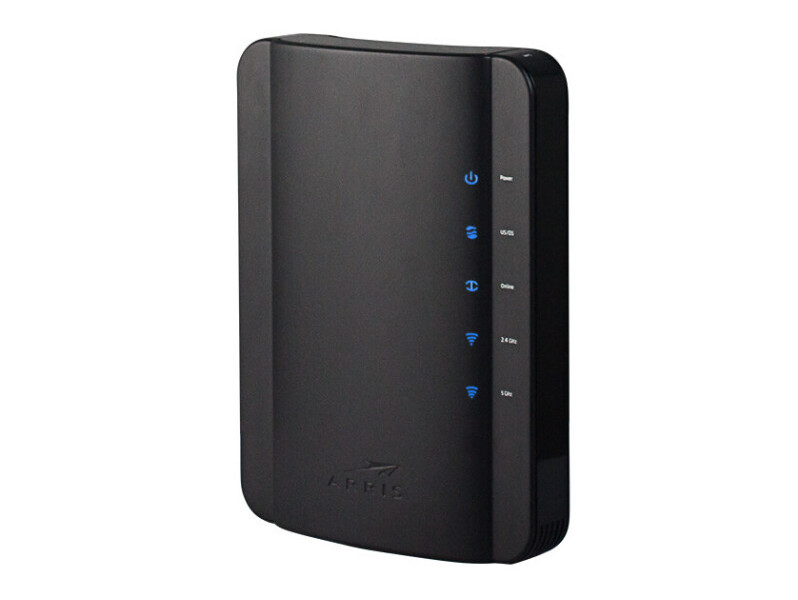
ARRIS DG1660
Our most common gateway for condo and RV park customers. Combines cable modem and Wi-Fi router in one unit.
How to factory reset
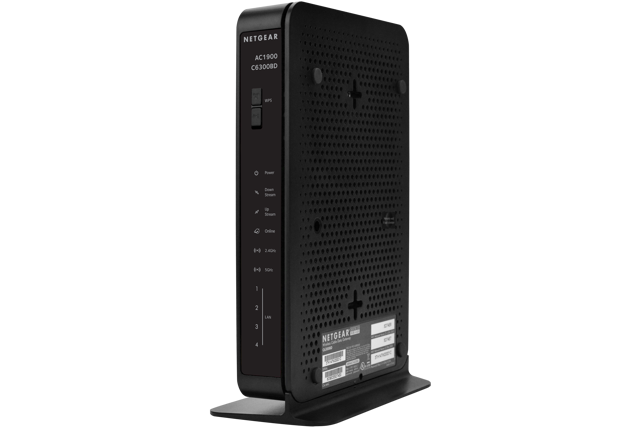
Netgear C6300BD
AC1900 dual-band modem/router combo. Common in our condo and RV deployments.
How to factory reset
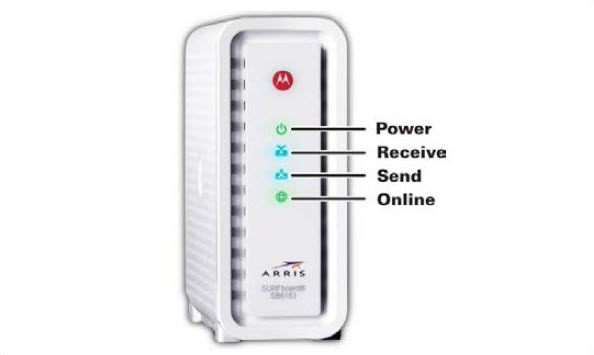
ARRIS SURFboard
Standalone cable modems — no built-in Wi-Fi. Used with a separate router or eero. The SURFboard series is modem-only.
How to factory reset
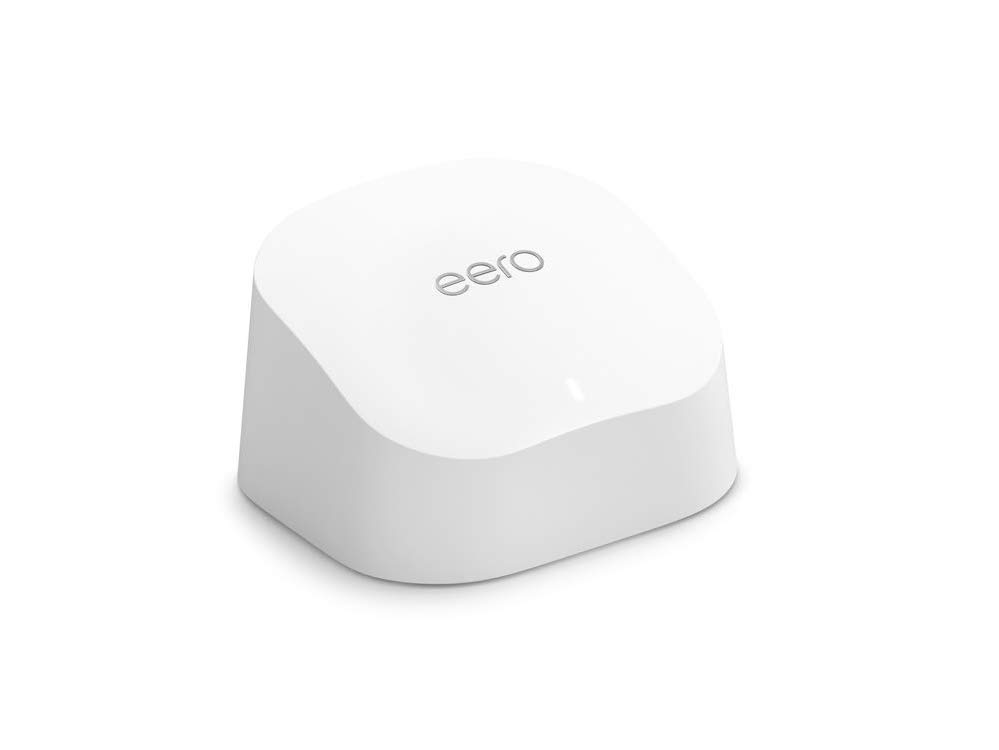
eero (all models)
eero routers and mesh nodes are managed through the eero app. Factory reset is done via the app or the button on the device.